Bring in your clients from Xero
Published
Xero exports a group of contacts as a CSV file. Export your customers, choose the file in Import clients, and ContactName and EmailAddress are matched for you, so you check the names and add them all at once.
What this does for you
Every client you keep in Xero, added here in one step.
1. How do I export my clients from Xero?
- In Contacts, choose Customers, so suppliers are not brought in and counted against the client limit.
- At the top right, select the menu icon, then Export. The contacts save as a CSV file.
Xero's guide to exporting contacts has more.
2. How do I add them?
- In Clients, select Import clients, then choose the file.
- Check the columns and read the clients to add, and any rows not added with the reason.
- Select Add, which gives the number, such as Add 24 clients.
Nothing is sent to your clients. If it was the wrong file, Undo this import removes them again until you leave the page. Why a row is not added lists each reason.
3. Which columns does it read?
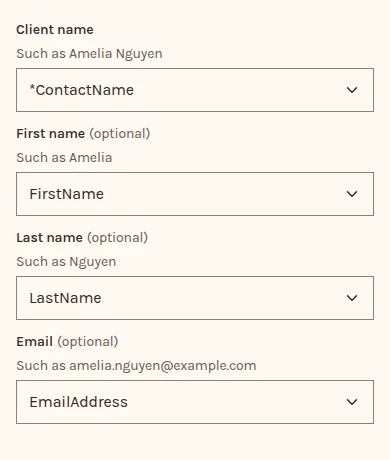
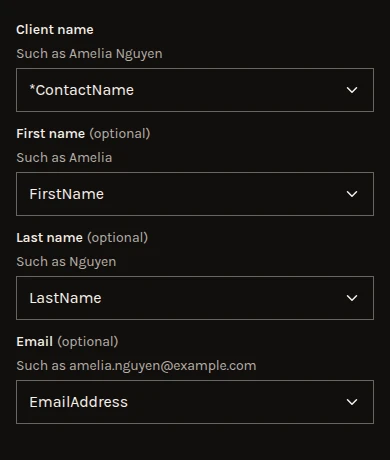
ContactName for the client's name and EmailAddress for their email.
Every other column is left out, so you don't need to delete any first.