How do I bring in my clients from Xero Partner Hub?
Your Xero Partner Hub contacts come in from one file, and you check every name before any is added.
There's no direct connection to Xero Partner Hub. A file does the job, and nothing is sent to your clients.
1. How do I get the file?
- In Xero Partner Hub, once Xero Practice Manager, select your practice's name, then Settings.
- Under Connections, select Export.
- Under File Type, select Generic - Clients, then select Export.
- Select the link under Export Result.
2. How do I import it?
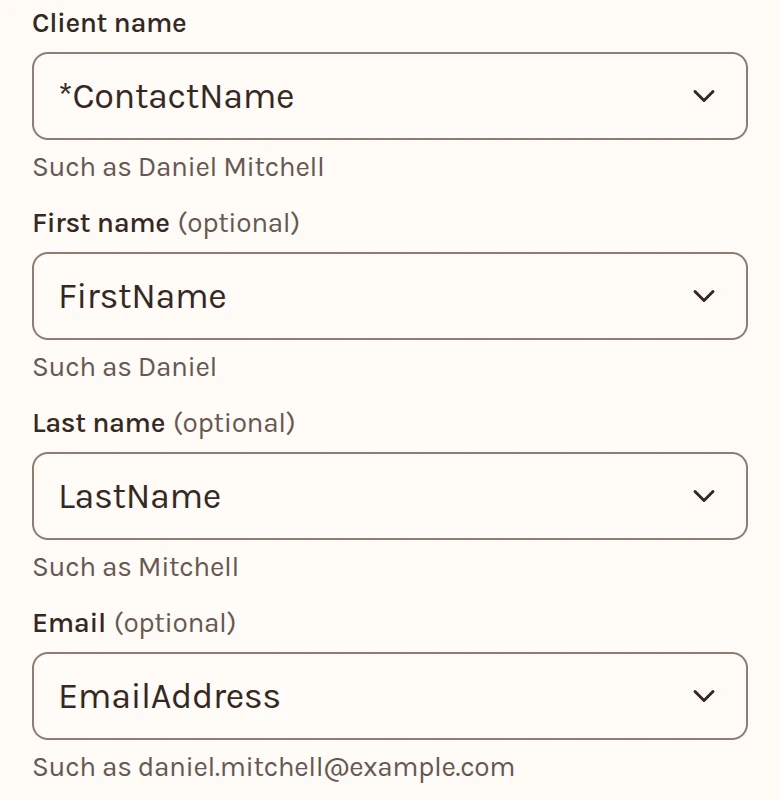
- On Clients, select Add from, then Import a file. Choose the file, a CSV or Excel .xlsx.
- Under Columns, check which columns hold the name and the email. The name can be one column, or a first and a last.
- Check the names under To add, then add them. Undo works until your next import.
Import your client list has the rest.
3. What comes across?
- Each client's name and email, and the ID Xero gives them.
Only the name, the email and the birth date come in. If you press Read, the rest of the file is sent to be read, as the page says before you press.
4. How do I add new clients later?
Export and import again. A client you already have is listed, not added or updated.