Help
How do my documents and Setup fill in my records?
Your documents become records, and Setup lists what to add next.
Setup lists what's recorded, by kind, and how many results are ready. Setup is done when Results reads Every result is ready.
The steps are in How to bring in documents in PropRetire.
1. How do I add my documents?
Drop whatever documents you have, in any order: statements, letters, photos, Word or Excel files.
The fewest that fill in a household:
- Each property: its settlement statement.
- Each loan: its latest statement.
- Rent: the agent's year statement, or the lease.
- Pay: your income statement from myGov.
- Cash: a recent bank statement.
- Depreciation: the schedule, if you have one.
From your phone
On a phone, Bring in starts with Take a photo, which opens the camera. Each photo is kept as a page and Add a page takes the next. Tap a page to see it whole and retake or remove it, then Bring in sends them together as one document.
To keep PropRetire on your home screen, choose Add to Home Screen: in Safari it's under Share, and in Chrome on Android under the menu. On Android, a PDF or photo in another app then comes straight to Bring in: tap Share in that app and choose PropRetire. An iPhone doesn't list web apps there, so on an iPhone use Take a photo or Choose files.
2. What do I check before anything is saved?
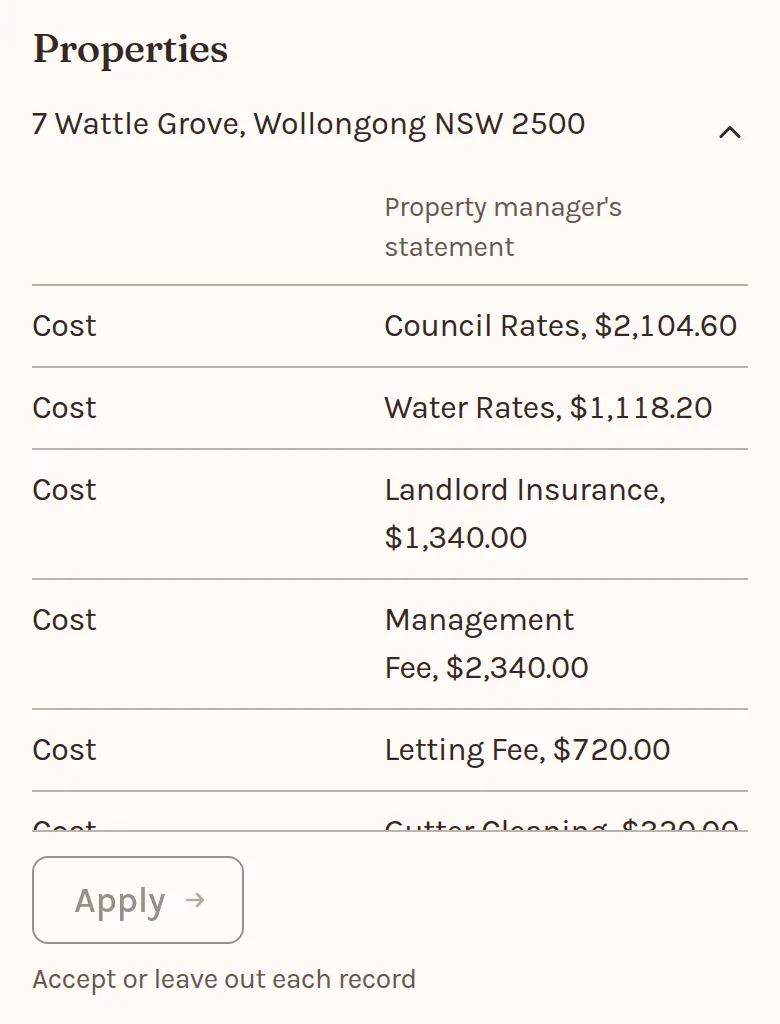
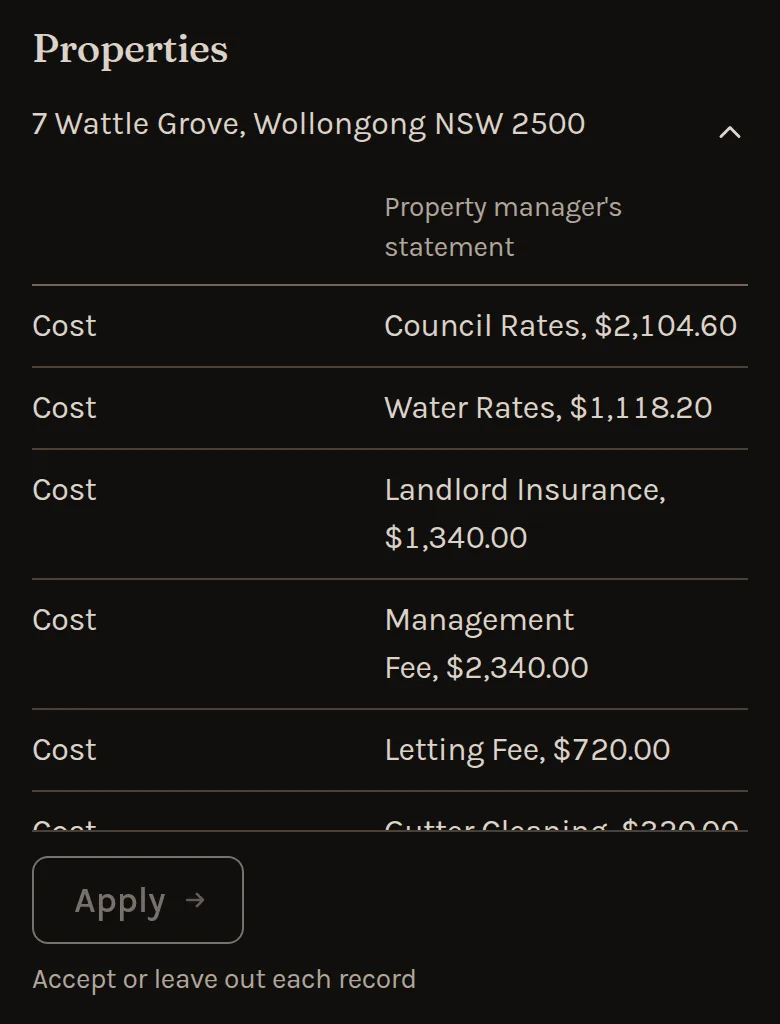
Check each figure against its line: its number marks that line on the page beside it, and the document's name, or the page itself, opens its pages to read. Leave out anything not yours. Where it may be one you have, choose which. Nothing changes until Accept all. To bring back a draft you left out, read its document again in Documents. A bank's export, a Word or Excel file and a document sent as several photos aren't kept, so add one of those again.
Where no document prints a start, a value's date or who pays, we fill in the likely one your documents give and say so under it. A company, trust or fund comes in as one. Change any of them before you accept.
Who owns a property, in what shares, and who took a loan out are asked, never guessed. Where a statement leaves out a loan's repayment type or end date, one worked out from its repayment and rate fills the box, marked as worked out, not from your contract. Type yours over it if your contract says another.
An insurance schedule
Drop in an insurance schedule and To review drafts its policy: the insurer, policy number, cover, sum insured, excess and the day it renews. Once you accept it, the policy sits on its property under Insurance, and Coming up names it 90 days before it renews.
A receipt or invoice
Take a photo of a receipt, or drop in an invoice. Where it names a property, To review drafts its cost on that property: what it was for, or who it's from, and the amount. Once you accept it, the cost sits on that property and the receipt stays in Documents.
A depreciation schedule
Drop in a depreciation schedule and To review drafts each year's figures: capital works, plant and equipment, and the low-value pool. Once you accept them, they sit in the property's Depreciation schedule, on Edit property.
A document's details
In Documents, choose a document and its details open beside the list: its kind, where it's filed, its period, who sent it, each date it shows, when it came in and how long it's kept. Figures lists every figure it gave your records. A date's bell puts it in Coming up. Activity shows what it replaced and its history. Open, download, rename, move or bin it from there, and add a note or a tag.
Find anything
Press Ctrl K, or ⌘ K on a Mac, or /, from any page. Search finds your records, documents and pages by name, and the things you can do, such as adding a loan.
3. Where is my first result?
Accept all ends on See your portfolio position: what you own less what you owe, before tax. It opens on Total assets and the figures it adds up.
Where a document prints a date, such as rates due or a fixed rate ending, Accept all offers it for Coming up on Home, even while a draft waits for a detail. Coming up holds 30 June from your first record. A new fixed loan also asks when its terms started, since the fixed rate runs from that day.
A fixed rate or lease that ends on the day its own document gives shows once. Where the two days differ, both show, and the document's says "as a document says".
4. What if I am not ready?
- No documents to hand? Under Net position, choose add a property yourself.
- Stopping part way? Waiting for you, on Home, keeps your drafts until the date it shows.
- Just looking? See a filled-in account opens a household nobody can change.
5. What does Setup show?
A section for each kind of record, with its Add button and what's still to record. Each name opens its record, and its form brings you back.
Sold, paid-out and ended records leave the list. Until every result is ready, Recent changes, at the foot, lists what was done, newest first.
6. What order do I record things in?
Every record names a Legal owner A person, company, trust or self-managed super fund that holds assets, owes debt, receives income or pays expenses. , so owners come first. Then down the page:
- Legal owners and their tax settings
- Properties
- Other assets
- Loans
- Income and living expenses
7. Can my documents fill it in?
Choose Add from, at the top of Setup, then Add documents, or drop them on any page. A client with nothing recorded yet has the drop on Setup itself. Nothing changes until you Accept all.
For documents in Google Drive or Dropbox, choose Add from Google Drive or Add from Dropbox on Bring in, then pick as many as you like. Each is read like one you drop.
To have new ones come in by themselves, choose Watch a Dropbox folder. We make your household a folder there, and each document added to it, or to the folders inside it up to three deep, is read once for you to review. If it stops, Bring in offers Why it stopped, and its page says why and what starts it again.
Where your Xero is connected, press From Xero on Bring in and choose Bring a year in from Xero, then the year and whether amounts are as paid and received or as billed and invoiced. Each rented property's costs and rent for the year come in as one draft, from the Property tracking option named as the property. Where you already hold a cost or a year's rent at another amount, To review shows Xero's beside yours, and you press the one to keep. Loan interest, and an amount we have no line for, such as sales, are shown, not brought in. Amounts not tagged to a property in Xero are counted, not brought in. Where each owner keeps their own books, one owner's books bring in only their properties, and where they own part of one, its amounts show as their share, not brought in. Bring assets in from Xero, under it, reads your fixed asset register: each asset waits in To review with Xero's book figures, for you to put under a property's depreciation, and changes no figure.
A settlement statement adds the property it bought, with its settlement date and buying costs, and the loan its advance started. Once it has settled, the property counts as yours from that day. A statement for a loan you haven't added adds it with its opening and closing balances, so the months it covers count the loan. An opening balance dated the 1st is also the loan's balance on the last day of the month before. A later statement updates the records you have, a loan's with its opening and closing balances and a property's with its rent and fees. Where it prints no start day, the change starts with the period it covers, and Edit changes the day. Where two documents disagree, you choose.
8. What is each result waiting on?
Results counts how many of the nine results are ready, from Portfolio position to Financial year review. On a Personal account, To see more lists each record still to add and the results it opens, and Home shows the first with See all on Setup. How you used a property, its rent, its type and its operating costs are answered right there, and on To review once you accept, with no form to open. Where all a property holds is the price you paid, Setup asks what the property is worth now. Your own figure will do. The value with the latest date is the one that counts. A property from a rates notice, loan statement or lease alone goes in with no contract date or price, and If sold asks for both before it works out any gain or tax. A contract of sale has both.
Below Results, Next to add lists the documents that would complete the most results, each with the result or figure it completes and a way to get it: Ask for it, Ask for records or Bring in. It updates when your records or documents change, and Home shows its first three. Nothing in it is added until you review it.
For a client, Results names the record most results wait on, then each result not ready and what it needs. An old figure shows there again, but never stops a result. Records that need a newer figure lists when each kind ages.
9. What is the date for new records?
Setup shows it once you have records. New income and living expenses start on it, 1 July unless you choose another.
Once you choose one, new values and balances take it too. Until then they're dated today.
It can't be in the future, and Setup keeps it until you close the tab.
10. What is ending soon?
Ending within 90 days lists a fixed rate, interest-only term or lease that ends that soon, with nothing newer recorded. Each row opens its next step:
- Add the rate when it ends, which forecasts use from the day after.
- Compare a refinance, which opens Refinance on that loan.
- Record the new rent.
11. How does Setup work for a client?
A Business account has a Setup for each client. It adds:
- Ask for records, while the client has no open request.
- Client records: the open request and its due date, with Open the request, then Review the response.
A client with nothing recorded starts at Add documents. Drop their documents there, or choose Or type it in or Ask for records.